


Cloud Storage Drive Backup app
3.9146.00 Reviews
App Specs
- Version
- 1.67
- Updated On
- License
- Free
- Downloads
- 500,000+
- Developer
- MINDBYTE STUDIOS
- Categories
- Tools
- Platform
- Android
Screenshots
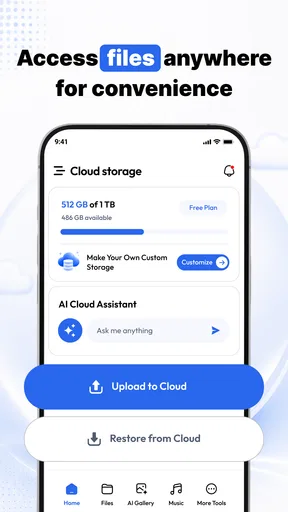
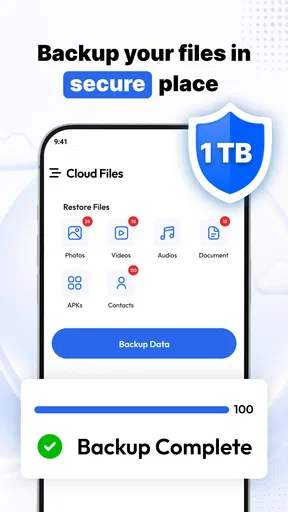
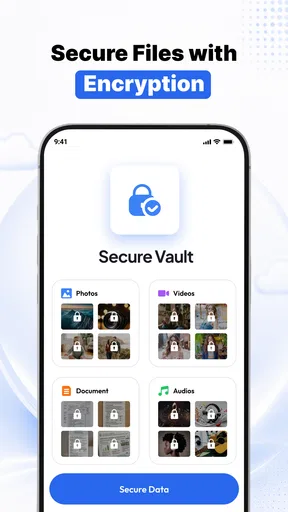
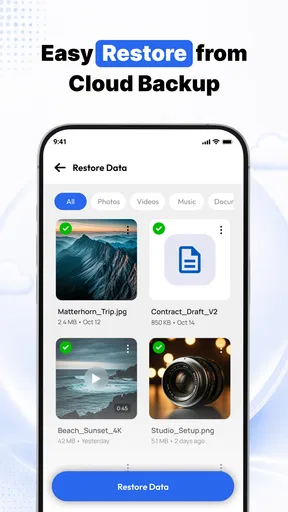
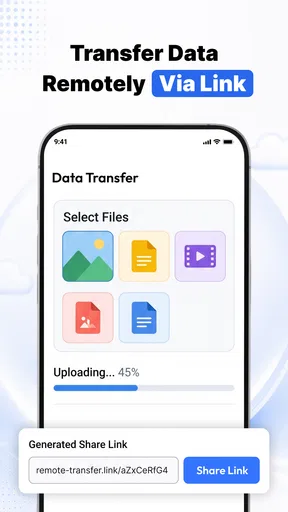
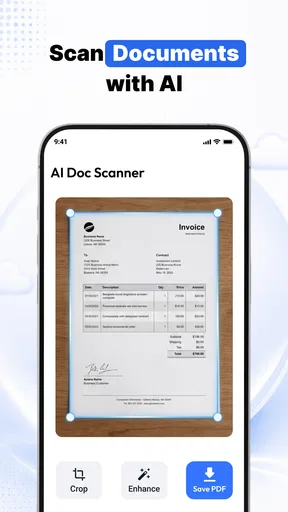
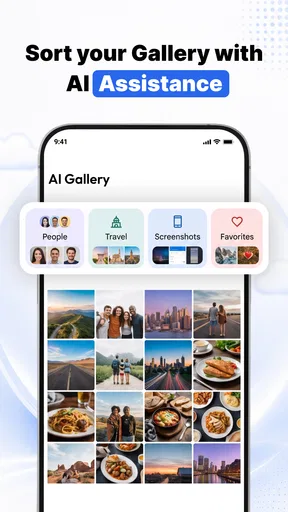
 Analysis by AppCompare
I approached Cloud Storage Drive Backup as a practical tools app rather than a full replacement for every storage service on a phone. Its purpose is straightforward: keep photos, videos, and contacts in cloud storage, provide a secure drive, and let me restore that information when needed. That focus makes it easy to understand, but the real question is whether the experience feels dependable when a backup is large, a phone is short on space, or a recovery is suddenly urgent.
After spending time with it, my impression is that this is most useful for people who want a separate place for important personal files without building a complicated backup routine. It is free to install, suitable for Everyone, and comes from MINDBYTE STUDIOS. The app has reached over 500 thousand installs, which gives it a meaningful user base, while its average rating sits at 3.9 from roughly 1.9 thousand ratings. That combination suggests a generally useful product with some room for improvement rather than a flawless experience.
How Cloud Storage Drive Backup feels in everyday use
I find this app easiest to judge as a focused backup tool, not as a complete replacement for the storage and backup features already built into a phone. In this section, I’ll look at what its everyday role feels like and why a small, deliberate first backup can be more reassuring than trying to move everything at once.
Speed depends more on the job than the button you press
The first thing I noticed is that cloud backup speed should not be judged by how quickly the app opens or how fast a screen changes. Small contact backups are naturally a lighter task than sending a long collection of videos. The app’s role is to move personal data away from the phone, so the amount of material and the quality of the connection matter more than a quick first impression.
For a modest backup, the workflow feels easy to understand. I would be comfortable using it for contacts or a small group of valuable images because the benefit is immediate: those items no longer depend entirely on the phone’s storage. Large video collections are a different matter. They can take longer and may make the process feel less responsive, especially when the device is also being used for messaging, photography, or streaming.
One useful habit is to treat the first backup as a setup task instead of something to start just before leaving home. If I were protecting a phone full of videos, I would begin while connected to a stable network and leave enough time for the transfer to finish. That is not a criticism unique to this app; it is the practical trade-off of moving large media files to remote storage. The important point is that a backup is only valuable when I allow it to complete.
The secure drive angle also changes how I think about speed. It is not merely a place to throw everything automatically. I can use it as a deliberate holding area for files I want available separately from the phone. That makes the app more useful for selected documents or personal media than for people who expect every file on the device to be mirrored without any decisions.
Worth Reading Before You Choose

EA SPORTS FC Mobile 26 Is a Bigger Football Game, but It Takes Time

Flipboard Shows What News Apps Must Do Beyond the Feed

Switching to Android Auto Means Rethinking Your Driving Routine

Google Calendar Makes a Crowded Week Easier to Manage

Ludo King Makes the Most of the Minutes Between Plans

Baby Panda World Brings Quick Play to Modern Phones, but Its Game Library Feels Busy
What happens when the phone is under pressure
Heavy use is where a backup tool earns trust. A phone may be nearly full, the camera roll may contain several large videos, and contacts may be overdue for protection. In that situation, I would not expect the app to behave like a lightweight note-taking utility. Uploading media involves reading files, preparing them, and sending them through the network, so it can compete with other activities for battery, data, and attention.
My practical recommendation is to separate urgent protection from general tidying. If contacts are the priority, handle that first rather than waiting for a large media collection to finish. If photos and videos are the priority, choose a calm period when the phone will not be needed constantly. This staged approach makes it easier to identify what has been protected and avoids turning one enormous task into an unclear all-or-nothing process.
A second useful workflow is to keep the secure drive organized around purpose. For example, I would place important travel documents, family videos, or files needed for a device change into clearly named groups rather than treating the drive as a dumping ground. That matters during recovery: finding one important item quickly is much easier when the backup reflects how I expect to use it later.
The app is also a sensible option for the everyday scenario of replacing a phone. Before handing the old device to someone else, I would use it to protect contacts and selected media, then check the cloud copy from the new device before wiping anything. The key word is “check.” A backup process should not be treated as complete merely because it was started. Recovery is the real test, and a short verification can prevent a painful surprise.
Stability matters more than a polished first session
Cloud storage tools are judged over time. I may open an app once to make a backup, but its real value appears weeks later when I need a contact, a photo, or a file from another device. In my view, the strongest part of this product is the clarity of its central purpose: backup and restoration are not hidden behind an unrelated social feed or a crowded editing suite.
At the same time, I would avoid assuming that cloud storage removes every responsibility. I still need to know what I chose to back up, keep my account access available, and allow enough time for larger transfers. The app can provide a separate copy, but it does not make careless selection harmless. If I protect only a few folders and later expect the entire camera library to appear, the problem is likely my backup plan rather than the recovery screen.
The restoration promise is especially valuable when a phone is lost, damaged, or replaced. Contacts are the kind of information people often remember only after it disappears, and a remote copy can be far more useful than relying on a device that is no longer available. Photos and videos have a similar emotional value, although the larger they are, the more important it becomes to plan the recovery instead of expecting everything to return instantly.
I also like the idea of using restoration selectively. If I am setting up a new phone, I may want contacts immediately but prefer to bring back media gradually. That approach reduces clutter and makes the new device usable sooner. It also avoids filling limited local storage with files I do not need every day. A cloud backup is most flexible when it serves as a source I can draw from, not as a command to download everything at once.
Android compatibility and resource trade-offs
The current release is version 1.67 and requires Android 9 or later. That is helpful for owners of reasonably modern Android devices, but anyone keeping an older phone should check compatibility before planning a migration around it. The requirement also means the app is not aimed at the oldest hardware still in circulation.
On a supported phone, the main constraint is likely to be the size of the material being handled rather than the app’s basic interface. A device with limited free space may benefit from moving older videos into cloud storage, but the initial transfer still has to read those files before they can be stored remotely. In other words, cloud backup can relieve long-term storage pressure without making the first upload cost-free in terms of time and connectivity.
People with modest data plans should be especially deliberate with video. Photos can accumulate quietly, while videos can turn a routine backup into a much larger network task. I would use a home connection for substantial media transfers and reserve mobile data for genuinely urgent items. This is a simple but important distinction between protecting something now and synchronizing an entire library.
Battery is another practical consideration during heavy work. I would not begin a major backup when the phone is already low on power or when I need it for navigation. A long transfer is better treated as maintenance. Starting it at a convenient time, then checking the result afterward, is more realistic than expecting the phone to remain fully available throughout the process.
There is also a privacy and convenience trade-off in using a separate cloud drive. Keeping files online can make them available after a device problem, but it means I should be comfortable with the storage arrangement and with managing access to the account. The secure-drive positioning is reassuring as a purpose, yet I would still use a strong account routine and avoid treating any remote copy as a reason to ignore basic digital hygiene.
Where it fits beside familiar alternatives
Compared with the backup tools already built into many phones, this app appeals to someone who wants a dedicated place for contacts, photos, videos, and selected files. Built-in services can feel more automatic because they are tied closely to the phone’s operating system. That convenience may be the better choice for a person who wants almost no decisions and already has a comfortable setup.
Cloud Storage Drive Backup makes more sense when I want the backup function to feel separate and intentional. The secure drive gives the experience a file-storage dimension, while restoration is presented as a central reason to keep the copy. I would choose it over a general file manager when my priority is protecting personal data rather than merely browsing folders.
It is less compelling for users who need advanced collaboration, extensive document editing, or a highly specialized media-management system. Those people may prefer a broader cloud platform designed around shared workspaces or deep integration with other services. This app’s appeal is narrower and more practical: protect common personal data, keep selected files in a remote drive, and retrieve them when necessary.
Cost also deserves attention. The app is free, but in-app purchases range from around ten dollars to nearly one hundred eighty dollars per item. That does not make the initial trial expensive, yet it does mean I would inspect the available purchase choices carefully before committing to a long-term storage routine. The right value depends on how much data I plan to keep and how often I expect to use the service, not simply on the fact that installation costs nothing.
Small habits that make recovery less stressful
My first tip is to create a recovery check immediately after the initial setup. I would back up a small, recognizable group of contacts or media, then confirm that those items can be found again. This tests the whole path rather than only the upload button. It also gives me confidence before trusting the app with a larger collection.
My second tip is to protect irreplaceable items before ordinary clutter. A short family video, essential contacts, or a document needed for travel deserves attention before screenshots and duplicate downloads. That priority order makes the app useful even if I do not have time to process the entire phone.
My third tip is to think about restoration space before starting a full recovery. A cloud copy can save the data from a damaged phone, but the replacement device may not have room for every video. I would restore contacts and essential files first, then bring back larger media in stages. This is a more controlled workflow than trying to recreate the old phone in one move.
Finally, I would revisit the backup selection after changing phones or camera habits. A setup that worked when I had a small photo library may become inefficient after months of recording videos. The app is most dependable when I treat it as part of a routine rather than a one-time emergency button.
My performance verdict
Cloud Storage Drive Backup is a focused tools app with a clear reason to exist. I see it as a practical safety net for contacts, photos, videos, and selected files, especially for someone who wants a dedicated cloud drive instead of relying entirely on local storage. Its usefulness is strongest when I plan backups, allow time for large transfers, and verify recovery before deleting anything from the phone.
I would recommend it to Android users on version 9 or later who value a straightforward backup destination and want restoration to remain part of the same experience. The free entry point makes it easy to try, and the Everyone age rating keeps it accessible to a broad audience. MINDBYTE STUDIOS has built something understandable rather than overloaded, which is a genuine advantage for people who do not want a complicated storage system.
I would skip it if I need a highly automated operating-system backup, advanced teamwork features, or a service chosen solely for the lowest possible long-term cost. I would also be cautious about starting with a huge video library on a weak connection or a phone with little battery and storage headroom. In those situations, a more integrated alternative or a carefully staged manual process may suit me better.
Overall, my view is positive but measured. The app does not remove the practical limits of network speed, battery, device space, or purchase planning. What it does offer is a clear route to keeping important personal data away from a single vulnerable phone. Its real strength is not instant performance; it is making recovery possible when the original device is no longer dependable.
Pros
- Automatic backup keeps photos and files protected without manual uploads.
- Files can be accessed across phones
- tablets
- and computers.
- Sharing links makes it easy to send folders or individual files.
- Search tools help locate documents quickly within stored content.
- Offline access lets you open selected files without an internet connection.
Cons
- Free storage space may be limited for users with large media libraries.
- Backup and sync can consume mobile data if Wi-Fi restrictions are disabled.
- Some advanced sharing and security features may require a subscription.
- Large uploads can take considerable time on slower connections.
- Background syncing may increase battery usage on older devices.
FAQs for Cloud Storage Drive Backup app
What is Cloud Storage Drive Backup used for?
Cloud Storage Drive Backup is designed to keep copies of important files, photos, videos, documents, and other personal data in online storage. After installation, users can upload files manually or configure automatic backups, depending on the available options. It is useful for protecting data from accidental deletion, device damage, loss, or switching to a new Android or iOS device.
Is Cloud Storage Drive Backup free to use?
The app may offer a free storage allowance, but the available space and features can vary depending on the plan, platform, and current developer policy. Larger backups, extended file history, automatic synchronization, or advanced sharing tools may require a subscription or in-app purchase. Before uploading a large amount of data, check the pricing page and storage limits shown inside the app.
How secure are my files in Cloud Storage Drive Backup?
Cloud Storage Drive Backup generally uses account authentication and encrypted connections to protect files while they are transferred to the cloud. However, no online service is completely risk-free. Users should create a strong, unique password, activate two-factor authentication if available, and avoid sharing login details. It is also wise to review privacy settings and understand how the service handles stored data.
Can I access my backed-up files from another device?
Yes, cloud backups are intended to remain accessible from compatible smartphones, tablets, computers, or web browsers after signing in with the same account. This makes it convenient to restore files or continue working after changing devices. Access may depend on an internet connection, supported file formats, account permissions, and whether the backup has finished uploading successfully.
What should I check before starting an automatic backup?
Before enabling automatic backup, review which folders and file types will be included, how much cloud storage is available, and whether uploads are allowed over mobile data. Large photo and video collections can consume storage quickly and may increase data usage. For best results, connect to Wi-Fi, keep the device charged, and confirm that the backup status reports a successful completion.


